PH Clock

Probe House Software
by Wong CK
© Copyright 2012-2017

Version 1.4

What is this?

PH Clock is a simple program that displays the time on the desktop with a nice graphical clock face; rather than a plain black & white or solid colour pattern clock. It also has hourly chime and an alarm.
PH Clock can also play sample by dropping on to it a sample file.
PH Clock is freeware.

Requirements

  1. This runs on MINT and MagiC. Development was done on Mint 1,18.
    While lower MINT versions are not fully verified/tested on, it should still run on Mint 1.16.
  2. You also need to have zView's codec, by Zoro, correctly installed (the codecs and mem.ldg only). All these are available from the zView package (latest release 8) or the latest MintList build by Mikro which fixes some bugs and support MagiC. zView codecs requires a VDI with a valid EDDI (like NovaVDI, NVDI > 2.5 and fVDI, etc...).
  3. Screen colours of 256 colours, but you can still use it if you have 16 colours only.

Installation

  1. Extract and copy all the files into a folder of your choice. For example d:\phclock.
  2. Make sure that the IMG subfolder is created inside the folder. For example d:\phclock\img. The filenames must be in either uppercase or lowercase. Do not mix uppercase and lowercase in the filename.
  3. Make sure that the PNG images are inside this IMG folder.
  4. The 68020-60 version is named as phclock.prg, the Firebee version as phclkcf.prg and M68000 version as phclk00.prg.
  5. Copy all zView codecs into C:\GEMSYS\LDG\CODECS folder. Create that folder if you do not already have it.
  6. Double click phclock.prg to run it !!
You could make PH Clock run everytime you reboot by using the run command in your Xaaes.cnf file.

The App Window

  • The app window shows the time of the computer in a clock face.
  • The clock face graphics is a PNG file that can be changed
  • Options to display clock face markings & seconds hand. Colours of the hands.

Moving the Window

  • You can move the clock around your desktop.
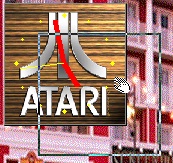
  • Click on any part of the clock and press until the mouse changes to a hand
  • Now you can simple move the rubber band box to the new desktop location and release the mouse
  • The app window will be moved there

Usage - options

  • Right click on the clock app window for a popup menu
  • Click on Next Picture to cycle to the next clock face picture
  • Click on Prev Picture to cycle back to the previous clock face picture
  • Select configuration to get into the configuration window (see next section)
  • Select Smart Audio so that PH Clock does not interrupt another player playing audio
  • Select Quit to exit PH Clock
  • The About displays.... well, the about of the app
  • The left & right arrow keys also changes the clock face picture.

Configuration Window

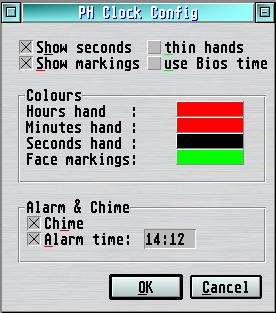
    Here you can make changes to the look of the clock and set the chime and alarm.

  • Toggle Show seconds to show the second hand ticking around the clock.
  • Toggle Show markings to show hours markings on the clock.
  • Toggle Thin hands for the clock hands. Sometimes due to resolution, you may need thinner clock hands to get it to display. I don't know why, but I stumbled on to this solution.
  • Toggle Use Bios time force using BIOS to get the time rather than localtime function. The seconds are incremented by 2 in this mode. This is a feature of BIOS time.
  • Colours - click on the colour bar to change the colour for the following objects
    • Hour hand, Minutes hand, Seconds hand and the face markings.
  • Toggle the hourly Chime on and off.
  • Toggle the Alarm on and off and enter the time for the alarm. The time is in 24 hours format.

Alarm mode, alarm sound and chime

The alarm and alarm time is set in the configuration window. When the alarm rings, to turn off the alarm, double click on the clock face window. The alarm will also turn off automatically after one minute.
The hourly chime is also set in the configuration window.

The default alarm and chime samples are located in the same folder of PH Clock. The alarm & chime sound samples can be changed easily by following these procedures:
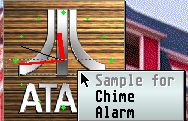
  1. While pressing the ALT key, drag & drop the sample file you want to use onto PH Clock window.
  2. Select Alarm or Chime from the popup selection. The sample will be used for the selected function.
Note: PH Clock does not make a copy of the selected sample but remembers the location of it, so please do not move or delete your selected sample.

Integrated Sample player

Integrated into PH Clock is a DMA sample player. This gives PH Clock the ability to play the following sound sample format:
Note that the newer Wave files found in MS Windows are of MPEG format, which is not supported.

PH Clock can be configured to play sample file by simply configurating the desktop SET APPLICATIONS for PH Clock for a sample type or simply by drag and dropping a sample file onto PH Clock window. To listen again to a sample, double click on PH Clock window.

Config and Clock face graphic files

The config file is called phclock.cfg located at the same folder of the app. It is created by the app itself on exit. it contains settings information as set in the configuration window. If something goes wrong and you need to reset the settings, just delete the phclock.cfg file.

The clock face graphics files are located inside the IMG subfolder. The filename of the graphics files must be CFnn.PNG.
  1. You can use your own graphics for the clock face. Just add to the graphics files in the IMG folder, and follow the rules below.
  2. The file type must be PNG. Any amount of colours can be used. The clock size is small at 120 x 120 pixel. Graphics file will be scaled down to this size.
  3. Scaling of the graphics file may take several seconds. The included small graphic files already takes 2-3 seconds on my TT. So larger ones will take longer.
  4. The filename must begin with CF followed by a numeric increasing sequence. CF stands for Clock Face in this case.
  5. The numeric sequence must be continuous, if a number is skipped, it will stop loading at the skipped number.

Limitations

Version history

Version 1.4 : Fixed NAES GUI issues.
Version 1.33 : Smart audio and re-order the options menu.
Version 1.31 : Real per minute redraw.
Version 1.31 : Simulated every sec redraw for MagiC in non-bios time mode.
Version 1.31 : Removal of red square in config window.
Version 1.30 : MagiC compatible.
Version 1.30 : Make PH Clock into a DMA sample player.
Version 1.30 : Configurable alarm and chime sounds.
Version 1.21 : Briefly tested on Mint 1.16, removed required Mint version.
Version 1.20 : Added choime and alarm function.
Version 1.20 : Fixed mouse cursor blinking
Version 1.01 : Silently exiting if RSC cannot be loaded when running off ext2 fs (or any fs which allows upper and lowercase).
Version 1.01 : Memory violation when exiting from a Memory Protected Mint.
Version 1.01 : Error getting object tree in MyAES.

Thanks

Thanks to the gang at Atari-Forums.com and OL and jfl for the support. Latz for German translation. AtFact for icons.

Future developements

None planned so far.


Questions, comments, or error reports? Please leave a post at Atari-Forum.com
Visit my web site at https://sites.google.com/site/probehouse/